In macOS, you can easily convert the format of images using a Quick Action in Finder or you can achieve the same thing via the Preview app, but if your daily workflow requires you to repeatedly convert images – for uploading to a blog, for example – then using a Folder Action can be a much faster way of getting the job done.
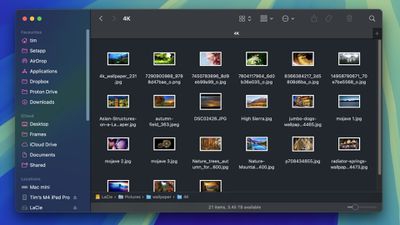
In this article, we’ll show you how to use the macOS Automator app to create a very simple Folder Action that will automatically convert images dropped into a specific folder, without you having to manually apply a Quick Action or open an image editing app. Keep reading to learn how it’s done.
How to Create an Image Converting Folder in Automator
- Launch Automator from the Applications folder.
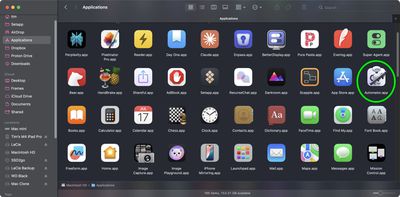
- Click New Document.
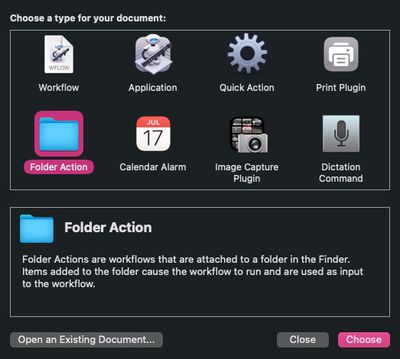
- Choose Folder Action as the type of your document.
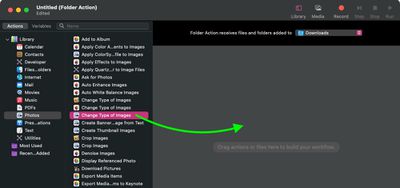
- At the top of the workflow area, click the dropdown next to Folder Action receives files and folders added to: then select Other….

- Select the folder that you’d like to attribute the image conversion action to. In our example, we’re choosing the Downloads folder.
- From the Library sidebar on the far left, select Photos.
- From the Actions column, drag Change Type of Images (the one with the Preview icon) to the workflow area.
- A dialog prompt will appear. If you want your action to convert copies of images placed in the folder and preserve the originals, select Add. If you want it to convert the original images, select Don’t Add.
- In the Change Type of Images action panel, choose the type of format that you want images to be converted to. We’re selecting JPG.

- In the Automator menu bar, select File -> Save… or press Command-S, call your new file action “Convert Image,” then click Save.
That’s all there is to it. Next time you want to convert an image into your preferred format, simply drag it into the folder that you assigned the action to.
Now that you know how to create the image conversion workflow in Automator, you may want to turn it into a standalone “Application,” the option for which you can find in Automator’s document menu. An “Application” is a self-running workflow that acts as a droplet – any files or folders dropped onto it are used as input to the workflow. In other words, you could add an “Application” to your Dock and drop images onto it for conversion.
You can also import Automator workflows into the Shortcuts app. Shortcuts can convert most Automator workflows into shortcuts that carry out the same functions, events and automations — you simply drag a workflow file into Shortcuts and the conversion happens automatically.
Popular Stories
iOS 19 to Have Some of the ‘Biggest’ Design Changes in iPhone’s History
Apple is planning some of the “biggest iOS and macOS redesigns in its history,” according to Bloomberg’s Mark Gurman. In his Power On newsletter today, Gurman reiterated that iOS 19 will have a visionOS-like design with more transparent interfaces:The new interfaces will adopt the design principles introduced in visionOS, the software for Apple’s Vision Pro headset. That includes greater…
iPhone 17 Pro Max Rumors Allegedly Refer to ‘iPhone 17 Ultra’ Model
Friday March 14, 2025 7:56 am PDT by Tim Hardwick
If you’ve been following iPhone rumors over the last few years, you may remember reading reports that Apple flirted with the idea of introducing a super high-end “Ultra” model that would either replace its Pro Max device or sit above it in Apple’s smartphone hirearchy. These reports appeared in the pre-launch iPhone 15 and iPhone 16 rumor cycles, but ultimately came to nothing. Now though, the…
Apple Canned Larger iPhone 17 Air Model Over Fears of Bendgate 2.0
Monday March 17, 2025 4:07 am PDT by Tim Hardwick
Apple prototyped a larger ultra-slim iPhone 17 Air with a 6.9-inch display, but ultimately decided not to go ahead with the device because of fears that it could be susceptible to bending, according to a new report. Bloomberg reporter Mark Gurman, writing in his latest Power On newsletter: When it first started work on the phone, it prototyped a device with a 6.9-inch screen — matching…
Apple’s First Foldable iPhone Estimated to Cost Nearly Twice as Much as iPhone 16 Pro Max
In an investor research note today with British bank Barclays, analyst Tim Long said Apple’s first foldable iPhone could have a starting price in the $2,300 range in the United States, which would make it by far the most expensive iPhone model ever. If the first foldable iPhone starts at $2,299, that means it would cost nearly twice as much as the iPhone 16 Pro Max, which starts at $1,199. …
Next Year’s iPhone 18 Pro Already Rumored to Have Five New Features
While the iPhone 18 Pro models are still around a year and a half away from launching, there are already some early rumors about the devices. Below, we recap some key iPhone 18 Pro rumors so far. Under-Screen Face ID In April 2023, display industry analyst Ross Young shared a roadmap showing that iPhone 17 Pro models would feature under-display Face ID. In May 2024, however, Young said …
iOS 18.3.2 Broke iCloud Mail Delivery
Monday March 17, 2025 3:31 pm PDT by Juli Clover
The iOS 18.3.2 update that Apple released last week appears to have broken iCloud Mail for some users. There are multiple complaints on Reddit and the MacRumors forums from users who say that iCloud Mail is not able to push new iCloud emails to their iPhones after the iOS 18.3.2 update. Affected users say that despite having the correct settings enabled, new iCloud emails are not showing up…
All Four iPhone 17 Models Rumored to Feature Upgraded 24-Megapixel Front Camera and More
All four iPhone 17 models launching later this year will feature an upgraded 24-megapixel front-facing camera, according to analyst Jeff Pu. In a research note today with investment firm GF Securities, Pu shared a chart in which he reiterated that the iPhone 17, iPhone 17 Air, iPhone 17 Pro, and iPhone 17 Pro Max will each be equipped with a 24-megapixel front camera. By comparison, all four …